Appearance
Connect and publish to Google Play
Connect a Google service account to an app in ReleaseDesk, then push Android builds to a Google Play testing or production track. This guide covers the Google Play Android Developer API used for publishing.
Before you start
You need:
- An existing app in Google Play Console and permission to invite users and manage its releases.
- A Google Cloud project where you can enable APIs, create a service account, and create a JSON key.
- An owner or admin role in the ReleaseDesk organization to save and verify the connection. Developers can push releases once it is configured; viewers can inspect the settings and publication status.
- A signed Android App Bundle (
.aab), or an APK for an app that Google Play still allows to use APKs. Its package name must match the Play app, and a new build needs a higher, unusedversionCode.
Create the app and upload its first build in Play Console before using ReleaseDesk. Complete the required store listing, app content, signing, and publishing setup there. The publishing API updates existing apps; it does not create the Play app or complete its legal declarations. See Google's edits prerequisites and release preparation guide.
The screenshots below are cropped and anonymized examples. Use your own project, service account email, and package name.
1. Enable the publishing API
- Open Google Cloud Console and select or create the project that will own the service account.
- Open APIs & Services > Library and search for Google Play Android Developer API (
androidpublisher.googleapis.com). You can also open its API library page. - Click Enable. If the page already offers Manage or Disable API, it is enabled.
Keep this project selected for the next steps. Google no longer requires linking the Cloud project to the Play developer account. Follow the current Google API setup instructions if your console layout differs.
2. Create a service account
- In the same Cloud project, open IAM & Admin > Service Accounts.
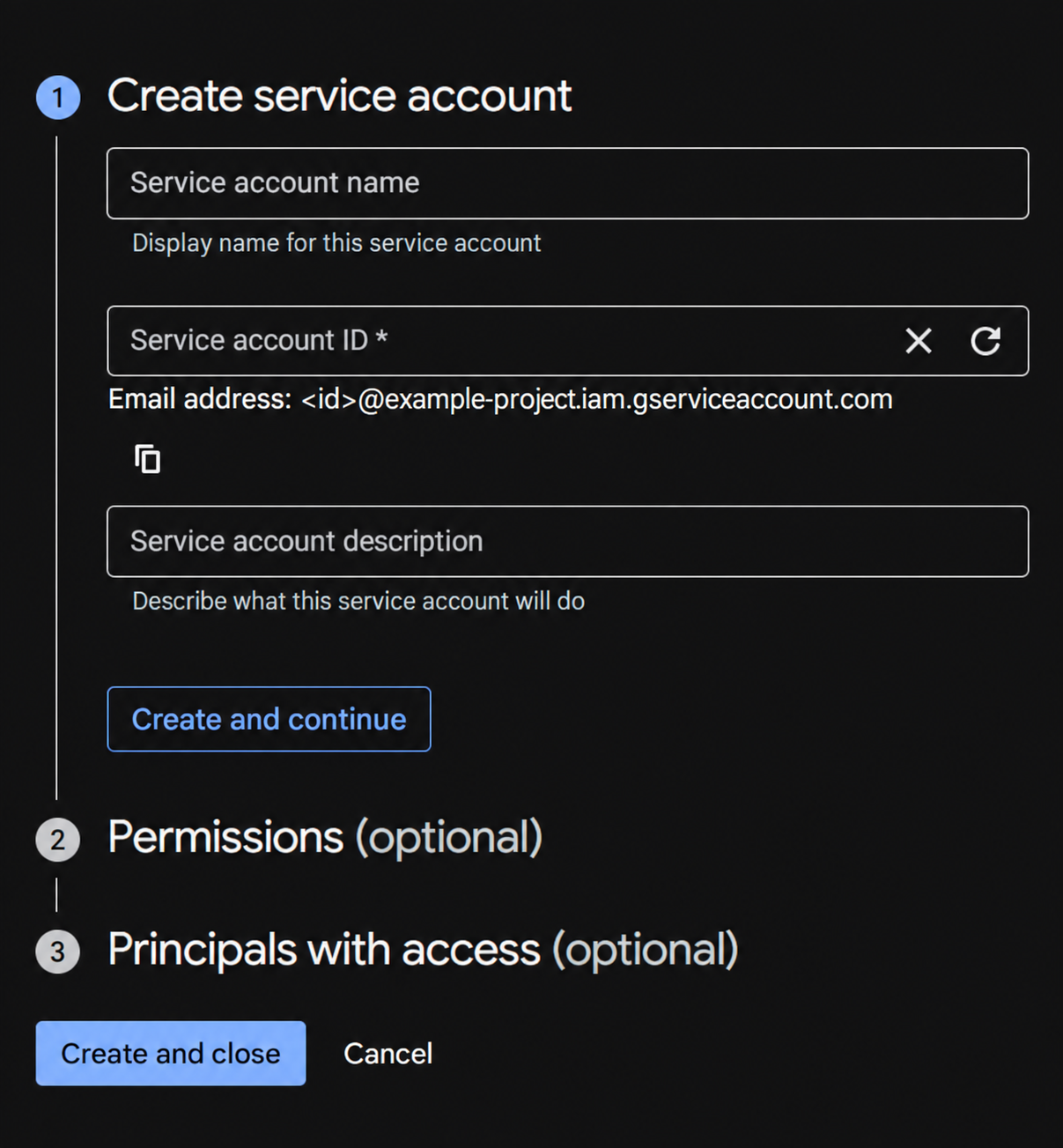
- Click Create service account.
- Enter a name such as
ReleaseDesk Publisher, an ID such asreleasedesk-publisher, and an optional description. - Click Create and continue. Leave the optional project permissions and principals with access empty, then finish with Done (or Create and close, depending on the console layout).
- Copy the resulting service account email. It looks like
releasedesk-publisher@your-project.iam.gserviceaccount.com.
The service account does not need a Cloud project Owner or Editor role for this integration. Grant its publishing access in Play Console in step 4. Google's service account setup also describes the optional Cloud access steps.
3. Download a JSON key
- Open the service account you just created.
- Select Keys > Add key > Create new key.
- Select JSON, then click Create. Your browser downloads the key file.
- Keep that file for step 5. The
client_emailin the JSON is the email to invite to Play Console.
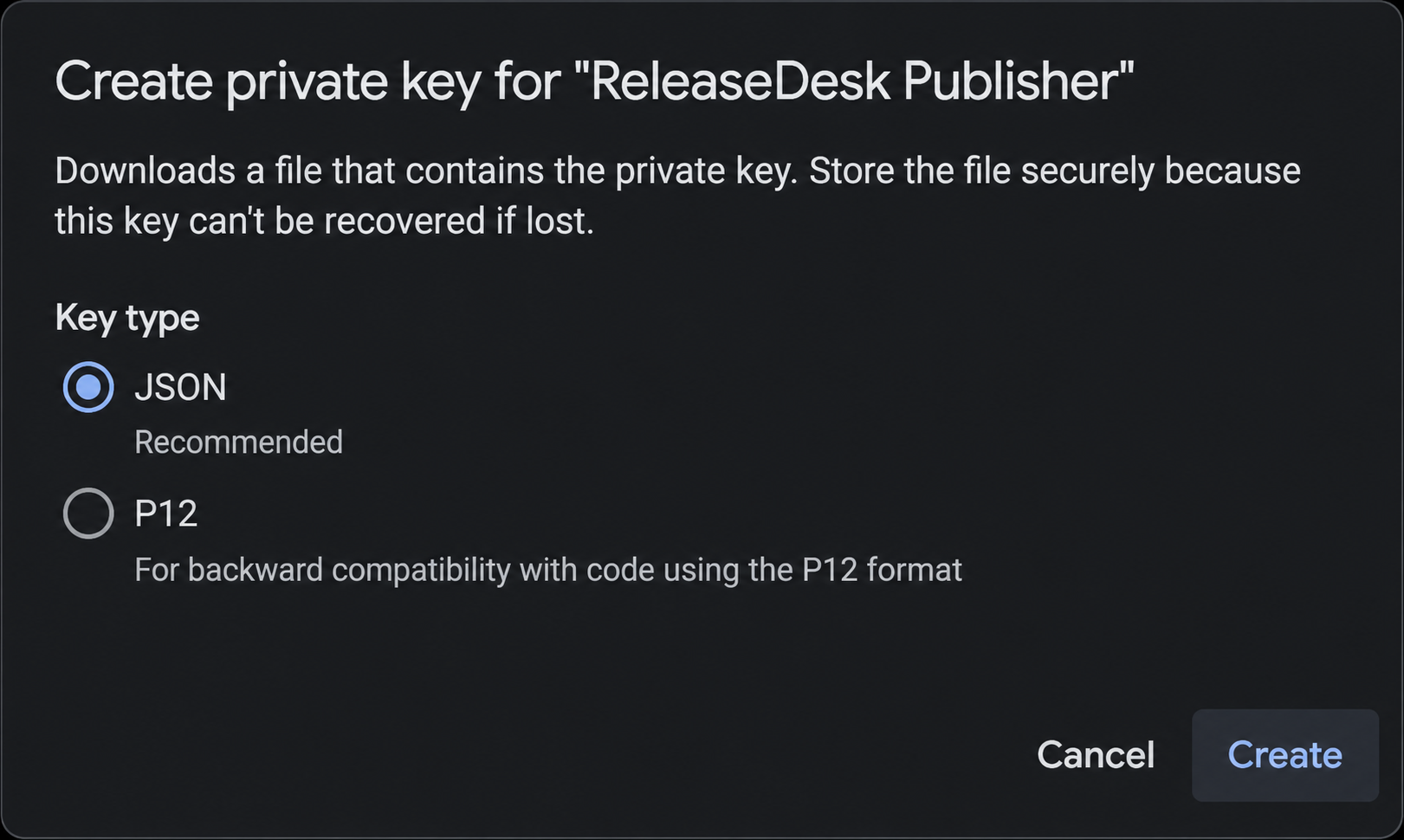
The downloaded JSON contains a private key. Keep it out of Git, screenshots, tickets, and release artifacts. Google does not offer the private key for download again. If key creation is blocked by an organization policy, ask the Cloud administrator to review the policy; ReleaseDesk currently requires a service account JSON key. See Google's service account key instructions.
4. Grant access in Play Console
- Open the developer account that owns your app in Google Play Console.
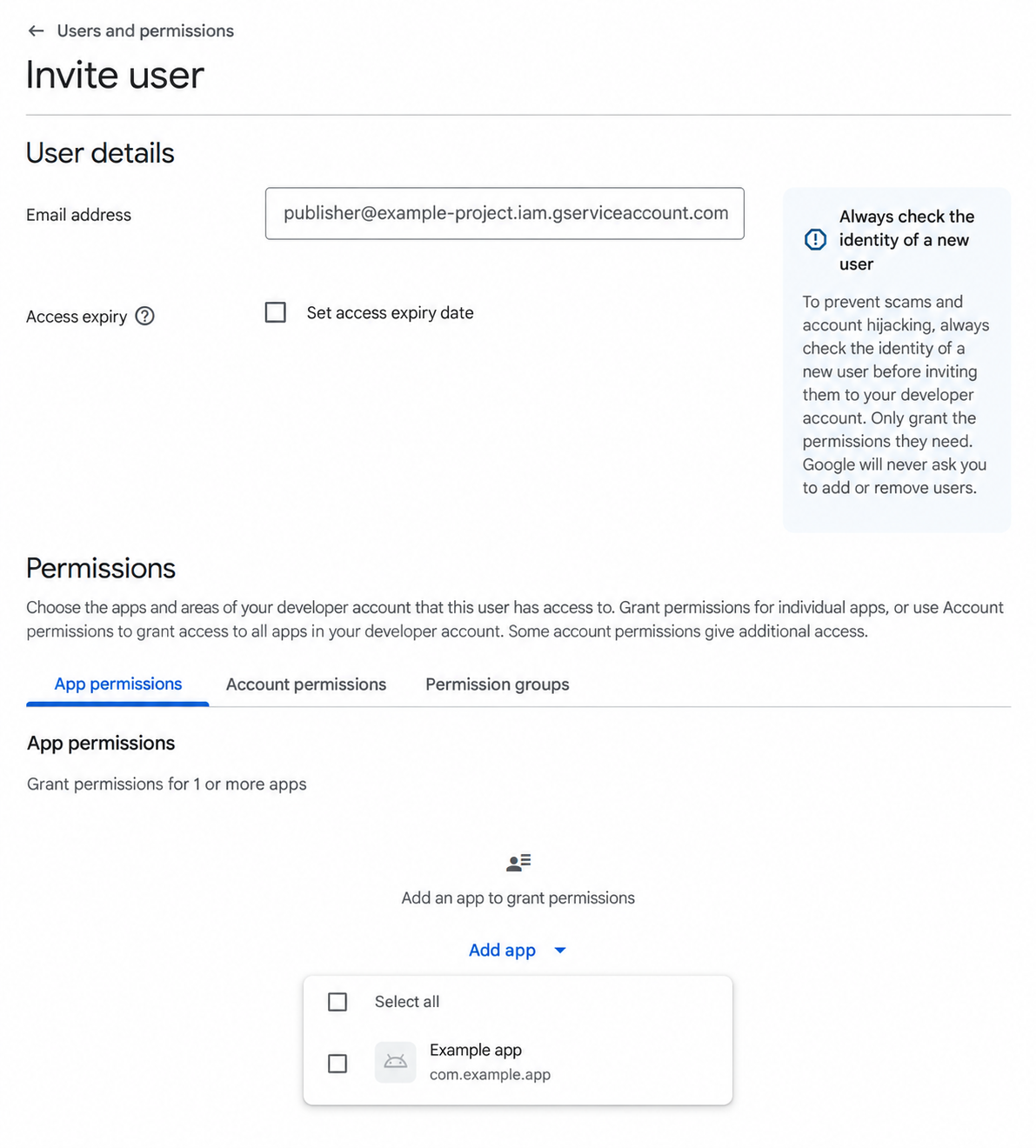
- Go to Users and permissions > Invite new users.
- Paste the service account email from step 2 or the JSON file's
client_email. - Under App permissions, click Add app and select only the app you are connecting.
- Grant the permissions below, click Apply, then Invite user to save the access.
| Permission | When to grant it |
|---|---|
| View app information (read-only) | To inspect the selected app. |
| Release apps to testing tracks | For uploading builds and publishing to testing tracks. |
| Release to production, exclude devices, and use Play App Signing | Also required when publishing or managing production releases. Omit it for a testing-only account. |
| Manage testing tracks and edit tester lists | Only if the account also needs to change testing configuration or tester lists. ReleaseDesk's current integration uploads builds and updates track releases; it does not manage Play tester lists. |
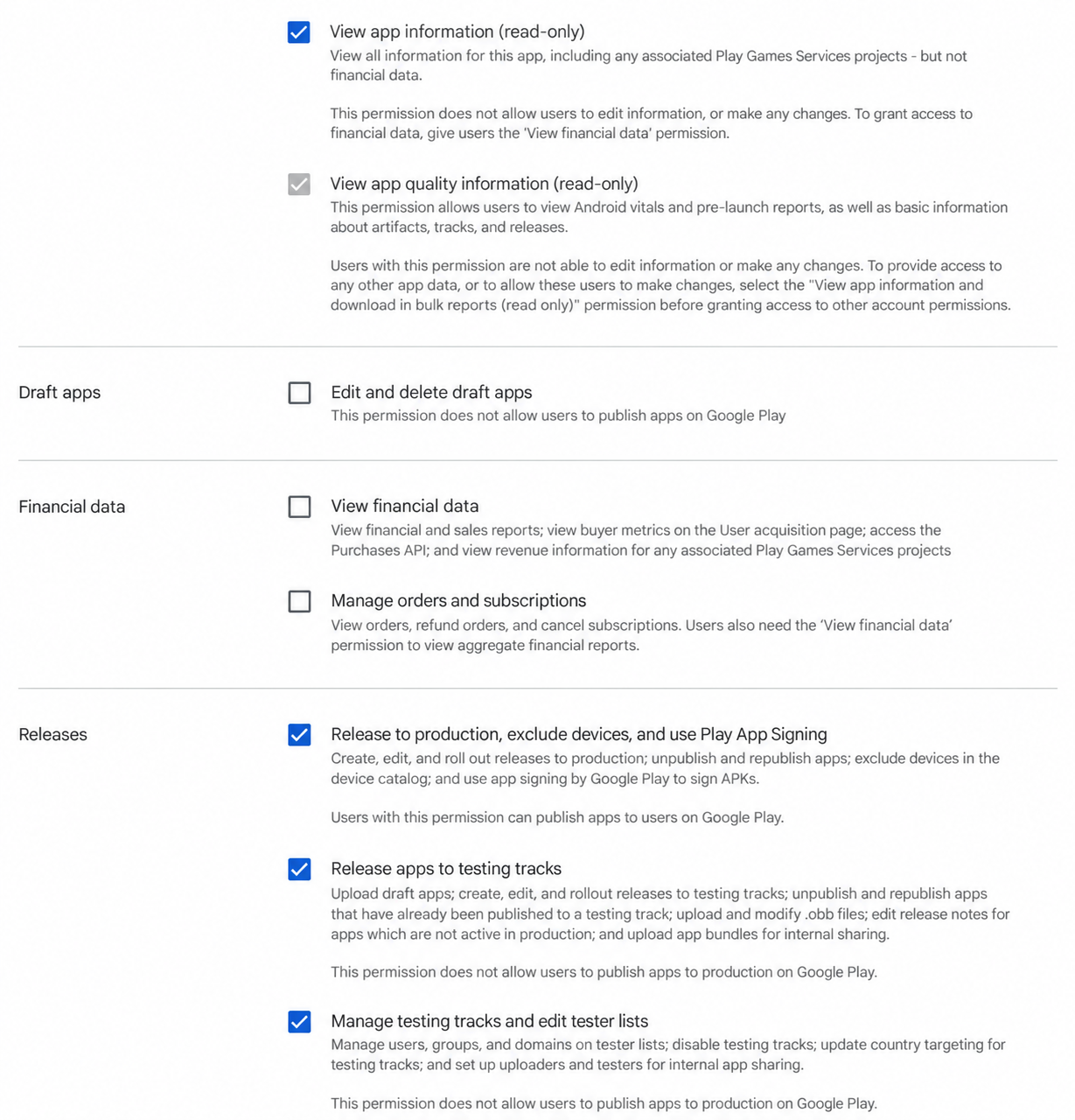
The example screenshot includes production and tester management permissions. Choose the permissions for your workflow using the table above. Administrator, financial data, order management, and store presence permissions are not needed for this integration. Google's permission reference explains each permission's reach.
If you set an access expiry date, the integration will lose access when that date arrives. Keep track of it when planning releases.
5. Connect the app in ReleaseDesk
- Open Apps, choose your app, and select the Google Play tab.
- Enter its Package name, for example
com.example.app. Use the Android application ID shown in Play Console, not the display name or service account email. - Set Release notes language, for example
en-US. - Under Service account key, choose the downloaded JSON file or paste its full contents.
- Click Save, then Verify connection.
When verification succeeds, ReleaseDesk shows the service account email and a Verified badge with a timestamp.
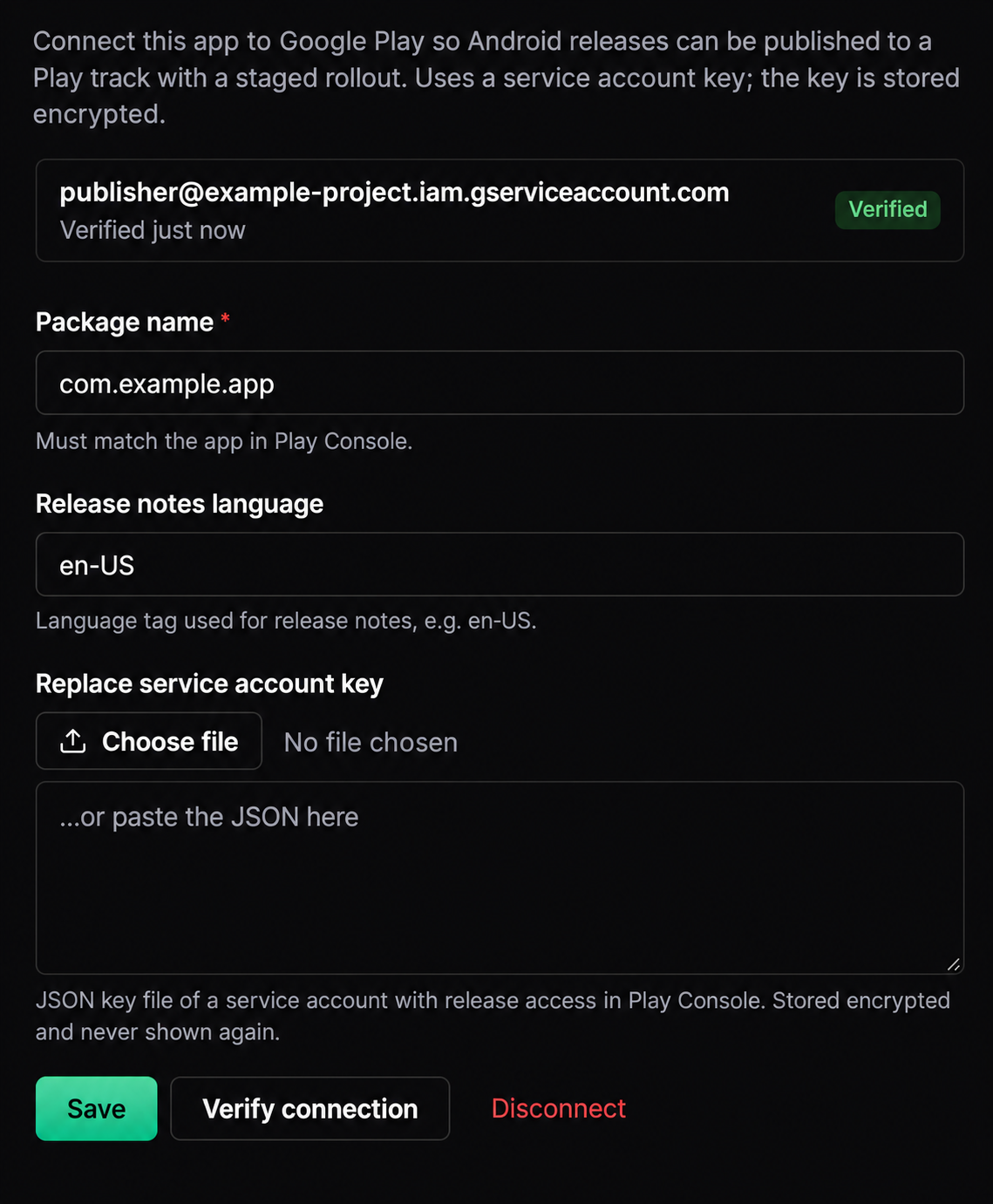
The JSON is stored encrypted and is never returned by the configuration API. The key input clears after saving. Leave it empty when changing only the language or package name to keep the saved key.
Verification opens and discards a Google Play edit for the configured package; it does not upload a build. A successful check confirms that those credentials can access that package, but Google still validates signing, release permissions, and publishing requirements during a push. Changing the key or package name clears the verification timestamp; verify again afterward.
6. Push a release
- Create a release and upload your signed
.aabor supported.apkto ReleaseDesk. Check that the artifact's package name matches the configured package and that itsversionCodeis correct. - Open the release and choose Push to Google Play.
- If the release contains multiple Android artifacts, choose the intended artifact. Check the variant as well as the format.
- Choose a Track. Start with
internalfor a connection check. - Use 100% for the internal test. For a staged production update, choose an initial percentage such as 10%; Google must allow staged rollout for that release.
- Leave Send release notes checked to send the release's notes in the configured language, or uncheck it to omit them.
- Click Push and follow the publication in the release page's Google Play section.
The dashboard offers internal, alpha, beta, and production. The API and CLI also accept a valid custom closed-track name; use the track identifier from Google Play.
ReleaseDesk converts Markdown notes to plain text and limits them to 500 characters. Review longer notes before pushing.
Queued means the upload was accepted for background processing. Wait for the operation to finish, check any error shown, and use Refresh from Play to pull track state immediately. Active publications also sync in the background every ten minutes. A Completed status reflects the Play track release state; check Play Console for review, managed publishing, or other availability requirements before announcing the release.
Promoting a ReleaseDesk channel such as beta or stable is a separate operation from pushing to Google Play. Play testers and their opt-in links are configured in Play Console; ReleaseDesk tester groups do not automatically grant Play testing access. See Google's testing setup guide.
Manage a staged rollout
For an active staged rollout, use the publication row on the release page:
- Halt pauses the rollout.
- Resume restarts a halted rollout.
- Enter a percentage and click Set to update the rollout. This also resumes a halted rollout. Use an increasing percentage when expanding delivery.
- Complete finishes the rollout at 100%.
Wait for queued work to finish before submitting another change. Halting a rollout does not uninstall the build from users who already received it. Google supports staged rollouts for updates, so complete the first release in Play Console before staging a later update. See Google's staged rollout guide.
Automate with the CLI
After an owner or admin configures the connection in the dashboard, use an app-matched API token with promote scope for pushes, rollout changes, and sync. A read token can list publication status. See API tokens for token setup.
sh
# Replace the example organization, app, release, and publication IDs.
rdesk play push --org my-org --app my-app --release rel_example --track internal --percent 100
rdesk play status --org my-org --app my-app --release rel_example --sync
rdesk play rollout --org my-org --app my-app --publication gpp_example --percent 50
rdesk play rollout --org my-org --app my-app --publication gpp_example --halt
rdesk play rollout --org my-org --app my-app --publication gpp_example --resume
rdesk play rollout --org my-org --app my-app --publication gpp_example --complete
The rollout examples apply to an existing staged publication, such as a production push below 100%. Use its returned publication_id, not the internal test publication from the first command. For request bodies and endpoint access, see the Google Play API reference.
Troubleshooting
| Symptom | What to check |
|---|---|
| Settings cannot be edited | Switch to the right organization and sign in as an owner or admin. |
| API disabled or not used in this project | Enable androidpublisher.googleapis.com in the project that owns the JSON key's service account. |
Permission denied / 403 | Confirm the exact client_email was invited, the correct app was selected, access has not expired, and the intended track's release permission is granted. If access was just changed, allow it to take effect and verify again. |
Package not found / 404 | Check the package name and developer account, the service account's app access, and that the first build was uploaded in Play Console. |
| Invalid JSON or wrong key file | Upload the complete downloaded service account JSON, not an OAuth client file, API key, or P12 file. It needs type: "service_account", client_email, and private_key. |
| Google token request fails | Check that the service account and key are still enabled, the key has not been deleted, and the server clock is correct. |
| Artifact rejected before upload | Use an Android APK/AAB attached to this release. Its parsed metadata must contain the matching package name and a version code. |
| Signing error or version code already used | Sign with the upload key registered for this Play app and build a new artifact with a new versionCode when needed. The service account JSON authenticates the API; it does not sign Android builds. |
| Draft app, incomplete setup, or review-related error | Complete the relevant setup and initial release in Play Console. ReleaseDesk currently requests completed or inProgress track releases, not draft-only uploads. |
| Staged rollout rejected | Check that Play allows staging for this track and release. Use 100% for the initial internal test; handle first production releases and any missing requirements in Play Console. |
| Edit conflict or invalid edit | Avoid making simultaneous Play Console changes while ReleaseDesk is uploading. Refresh the state and retry after outstanding work finishes. |
Rotate a key or disconnect
To rotate a key, create a new JSON key, upload it under Replace service account key, click Save, and Verify connection. Once the replacement works, delete the old key in Google Cloud. If you switch service accounts, grant the new account access in Play Console first.
Disconnect removes the app's saved ReleaseDesk configuration. To revoke access at Google as well, remove the service account from Play Console and disable or delete its key in Google Cloud. Disconnecting does not remove a published build from Google Play.